

There is more than one way to get a tracking tag onto a WordPress site. You can let Google Tag Manager manage everything, paste snippets into a header and footer plugin, or hard-code them into your theme. They all "work", but they age very differently. Here is how to choose.
The three approaches at a glance
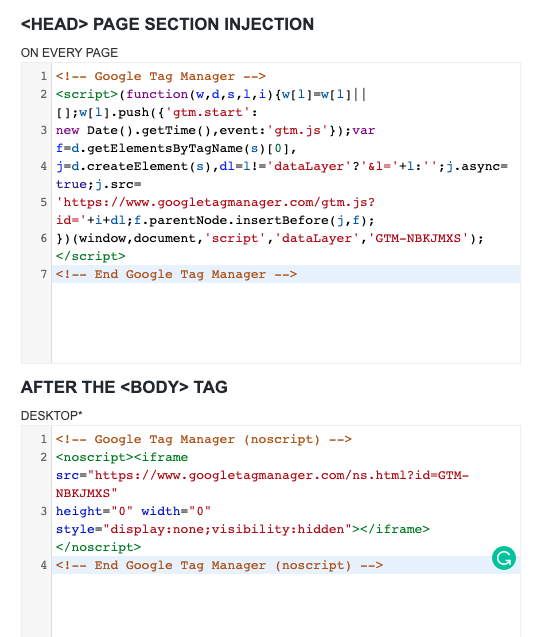
- Google Tag Manager, one container on the site, every tag managed from the GTM dashboard.
- A header/footer plugin (WPCode, Insert Headers and Footers), you paste each tracking script into a settings box.
- Theme code, snippets pasted directly into
header.php,functions.phpor a child theme.
Why Tag Manager usually wins
- No developer bottleneck. Marketing can add a pixel or a conversion event without touching code or raising a ticket.
- Update-proof. Tags live in GTM, not your theme, so a theme or plugin update never deletes them. Hard-coded snippets in
header.phpvanish the moment the theme updates. - Preview and rollback. You can test a change in a connected preview window and undo it in one click. Raw code has no safety net.
- One lightweight container. Ten scripts loaded through GTM beat ten separate blocking scripts scattered through your pages.
When pasting code directly is fine
GTM is not always necessary. Hard-coding or a header plugin can be the pragmatic choice when:
- You only ever need one tag (just GA4) and never plan to add more.
- A tag must load as early as possible, such as a consent management platform that has to run before anything else.
- You are on a managed host with heavy caching and want the GA4 snippet in place before the cache layer, with nothing else to manage.
A simple way to decide
- Most local businesses: use Tag Manager. You will add a second and third tag sooner than you think, and GTM makes that painless.
- A single, permanent GA4 install with no plans to grow: a header/footer plugin like WPCode is a clean, low-maintenance option.
- Editing
header.phpby hand: avoid it unless you are using a child theme. It is the approach most likely to break on an update.
Frequently asked questions
Is Google Tag Manager better than putting GA4 code on the site directly?
For anything beyond a single tag, yes. GTM centralises management, survives theme updates, and lets you preview changes. For one permanent tag and nothing else, direct installation is acceptable.
Will a header and footer plugin slow my site down?
Barely, if at all. The weight comes from the tracking scripts themselves, not the plugin. GTM can actually reduce the impact by loading tags asynchronously through one container.
Can I switch from hard-coded tags to Tag Manager later?
Yes. Recreate each tag inside GTM, publish, then remove the hard-coded versions. Just make sure you delete the old snippets so nothing fires twice.
Want your tracking set up properly, without the guesswork?
We set up GA4, Tag Manager and conversion tracking for Newcastle businesses every week, so you can see exactly where your leads come from. Get a free, no-obligation audit of your current setup.