

You followed the setup guide, hit publish, and the data is still not showing up. Do not rip anything out yet. Nine times out of ten it is one of a handful of causes. Work top to bottom, the quick wins are first.
1. Did you actually publish the container?
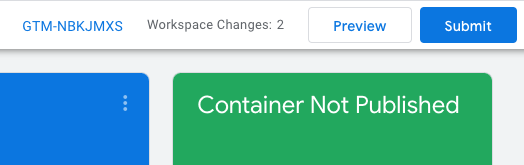
The single most common cause. Changes made in GTM stay in a draft workspace until you publish them. If your top bar shows Container Not Published or unpublished changes, that is your answer.
- Open your container and look at the top right.
- Click Submit, add a version name, then Publish.
2. Is the container code actually on the page?
- Open your site, right-click and choose View Page Source.
- Press Ctrl/Cmd + F and search for
GTM-. - You should find your container ID in two places, once high in the
<head>and once just after<body>. If it appears zero times, the snippet is missing. If it appears more than twice, you have installed it twice (see step 6).
3. Clear your caching, everywhere
This is the classic WordPress trap. You published in GTM, but your visitors are being served an old cached page that predates the change.
- Clear your WordPress cache plugin (WP Rocket, LiteSpeed, W3 Total Cache).
- Clear your host cache (WP Engine, SiteGround, Kinsta all keep their own).
- Purge your CDN (Cloudflare especially) so the edge serves the new HTML.
- Retest in a private/incognito window to dodge your browser cache.
4. Check for a wrong or mismatched ID
Two IDs get confused constantly. Your GTM container ID starts with GTM-. Your GA4 Measurement ID starts with G-. If you pasted a G- ID where the GTM- ID should go (or vice versa), nothing fires. Confirm each is in the right field.
5. Verify the tag in Preview mode
- In GTM click Preview and enter your URL. Tag Assistant should connect, if it cannot, caching or an ad blocker is usually the reason.
- Perform the action and check whether your tag sits under Tags Fired or Tags Not Fired.
- If it is in Not Fired, the problem is the trigger, not the tag. Open the tag, review its trigger conditions, and loosen anything too strict.
6. Rule out a double install
If numbers look inflated rather than missing, GTM is probably loading twice, commonly because it is added through both a plugin and the theme. Remove one. A tag should have exactly one home, a point we cover in GTM vs adding code manually.
7. Consent mode and cookie banners
If you run a cookie consent banner, it may be set to block analytics tags until the visitor accepts. That is correct behaviour, but it means a tag legitimately will not fire for a visitor who has not consented (or for you, if you declined). Accept cookies and retest, and confirm your Consent Mode settings match your intent.
Frequently asked questions
Why is my GA4 data not showing even though GTM is published?
Most often it is caching serving an old page, or the GA4 tag has no "All Pages" trigger. Clear every cache layer, then confirm the GA4 Configuration tag fires on all pages in Preview mode.
How long does GA4 take to show data?
Realtime reports appear within seconds, so use those to confirm tracking works. Standard reports can take 24 to 48 hours to fully populate, so do not judge a new setup by them on day one.
Does an ad blocker stop Google Tag Manager?
It can, for that visitor. Many blockers stop GTM and GA from loading, and can also prevent Preview mode connecting. Always test with blockers disabled so you are diagnosing the site, not your browser.
Want your tracking set up properly, without the guesswork?
We set up GA4, Tag Manager and conversion tracking for Newcastle businesses every week, so you can see exactly where your leads come from. Get a free, no-obligation audit of your current setup.